
How to Remove Green Screen in CapCut Step by Step
Media addicted people who are fond of making videos often face green screen editing issues. The unwanted green screen background can disrupt the video editing charm and badly affect the final view. If you are one of those facing this issue, then give a quick read to the article below as it is going to guide you on how to remove green screen in capcut.
The CapCut Pro APK Latest Version comes with an inbuilt Chroma Key feature that assists users in removing the green screen and replacing it with a desirable background by following some easy steps. Don’t worry if you are a beginner or an expert user of CapCut, as you will find this process easy to follow. So, let’s scroll the screen below and learn how to remove green screen in capcut and what tips could be beneficial for obtaining desired results in video editing!
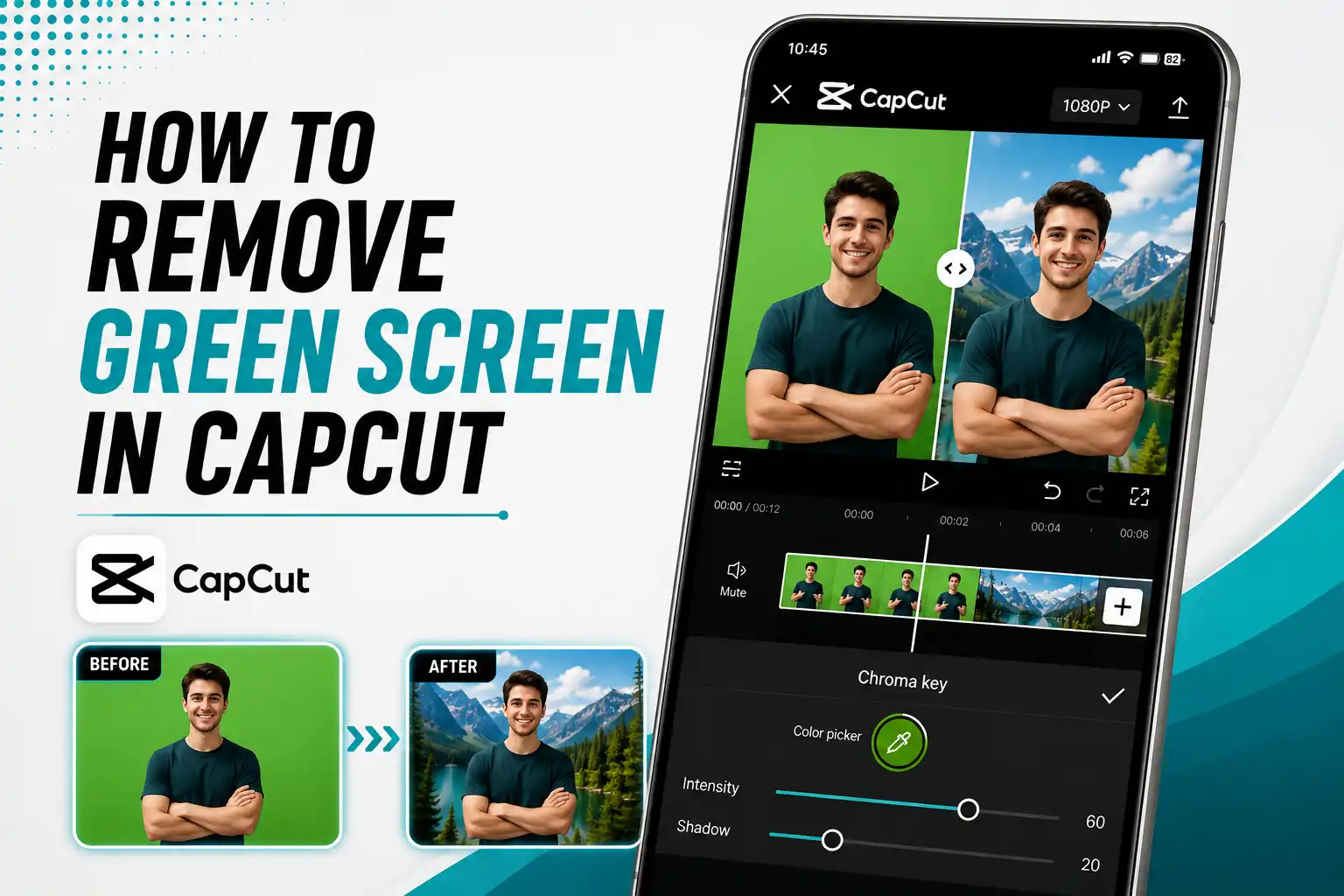
Key Takeaways
- CapCut offers the Chroma Key feature to remove the unwanted green screen from videos.
- Use the color picker to select the green background you want to remove.
- Adjust the intensity and shadow to reduce green edges and give the video a natural look.
- You can replace the removed green screen with your desired picture or video background.
- Preview the final editing before exporting the video with your desired resolution settings.
Step by Step Guidance on How to Remove Green Screen in CapCut
Below given are some easy steps that would help you remove the green screen in CapCut. So, let’s read them and follow the process!
Open CapCut and Upload the Media
Begin the process by opening CapCut and simply create a new project. Now, upload the desired picture or video whose green screen issue you want to resolve.
Add the Green Screen Video and Overlay the Clip
Click on Overlay and import the green screen video. Then, tap on the clip in the timeline to begin the editing process.
Open the Chroma Key and Select the Green Color
Now, you need to click on the Chroma Key present in the editing menu and use the color picker to select the green background in the video.
Adjustments
After this, adjust the intensity until most of the unwanted green background disappears. At the same time, adjust the shadow as well to reduce the green edges and make the video look natural.
Preview the Final Video and Export It
After doing all the required changes, preview your edited video to make sure it looks the way you want it to be. Then, click on the Export button, choose your desired resolution settings, and remove the CapCut watermark if you want a cleaner final result.

What Is Green Screen and Chroma Key in CapCut?
A green screen is a plain green background that allows users to replace it with another picture or video during editing. CapCut provides the Chroma Key feature that detects the selected green color and removes it from the video. After removing it, you can place your desired background behind the subject and give the video a more attractive look.
How to Fix Green Screen Edges in CapCut
Sometimes a light green outline may remain around the subject even after removing the background. Adjust the intensity slowly until most of the green color disappears without affecting the subject. You can also adjust the shadow to reduce the green edges and give your video a more natural look.
Why We Need to Remove the Green Screen in CapCut
Users of CapCut look for a way to remove the green screen to make their videos look natural and appealing. Some benefits of removing the green screen are listed below:
- No need to struggle to reach expensive places to get an attractive background. You can simply replace the unwanted background with a beautiful one.
- Give a professional touch to your videos by customizing the background the way you want.
- Your office and educational presentations can become more effective because removing the green background eliminates unwanted stuff and makes your editing look formal.
- It lets users show their creativity and create appealing visual effects to make the content look attractive.
- It can save time and production costs because you can get your favorite background while sitting at home.
- You can create hype for your marketing and promotional campaigns by changing backgrounds, adding visual effects, and learning how to add music to CapCut for more creative videos.
Final Verdict
This article covers detailed information about how to remove green screen in capcut. It highlights some easy steps that can help CapCut users remove the green screen by using the Chroma Key feature. You only need to import the video, select the green color, and adjust the intensity and shadow to remove the green background and reduce the green edges.
After making the required adjustments, preview your editing and export the final video. This is how you can give your video a natural look with a desirable background. So, follow the steps and enjoy smooth and creative editing.
Frequently Asked Questions FAQs
How to Find the Chroma Key in CapCut for Removing the Green Screen?
Open CapCut, go to the editing menu, and there you will find the Chroma Key option.
Is Chroma Key a Feature of CapCut Free and Safe to Use?
Yes, the Chroma Key feature is available in CapCut and is safe to use for removing a green screen.
How to Remove Green Edges From My Video in CapCut?
You can adjust the intensity and shadow options in the settings until the green edge effects disappear.