
How to Reverse Video in Capcut Pro APK?
A unique editing with attractive filters and captivating backgrounds could pull the viewer’s interest even when they are only scrolling the screen. If you are one of those struggling with low views and wondering how to make videos engaging, then this article is going to amaze you.
Sometimes a simple tool can make a big difference, so to tackle your issue, you can try the “reverse” effect in CapCut Pro APK, which can turn ordinary videos into attention-grabbing content. Read the content below on how to reverse video in capcut apk and learn the procedure!
How to Reverse Video in CapCut Step-by-Step Guide
Read the steps below to understand the reversal process of any video in detail. For additional details on the reverse feature, the official CapCut reverse-video guide also explains how the effect works across different editing workflows.
Open the Capcut
The first step is to open the CapCut application on your device. Whether you are using CapCut for iOS or another supported device, you will see the “New Project” option on the home page. Click on it, and it will direct you to your device gallery. Click on it and it will direct you to your device gallery. You can select the video you want to reverse from there.
Select the Video
From the gallery, select the video that you want to reverse. You will view the checkmark to see if the video is selected. Now click on the add option present at the bottom of the screen. Your video is now on the capcut timeline.
Check the Timeline
Now tap the video that is on the timeline, and you will have a view of the editing tools such as animation, split screen, style, etc. at the bottom of the screen.
Find the Reverse Option and Tap
Find the reverse option that may be present in the edit section or directly in the toolbar. Once you find it, tap on it and the capcut will begin processing your video. You will get a message on the screen indicating that your video is being reversed.
Check the Final Video
After a couple of seconds, your video will be reversed. Click on “tap” to play it and check if it works fine.
Export the Video
If you wish to export the video, click on the export option that is present at the top right corner of the screen. The same editing workflow can also be used in the CapCut PC version when working on videos from a desktop. Once the video is exported, you can view it in your gallery or saved location.
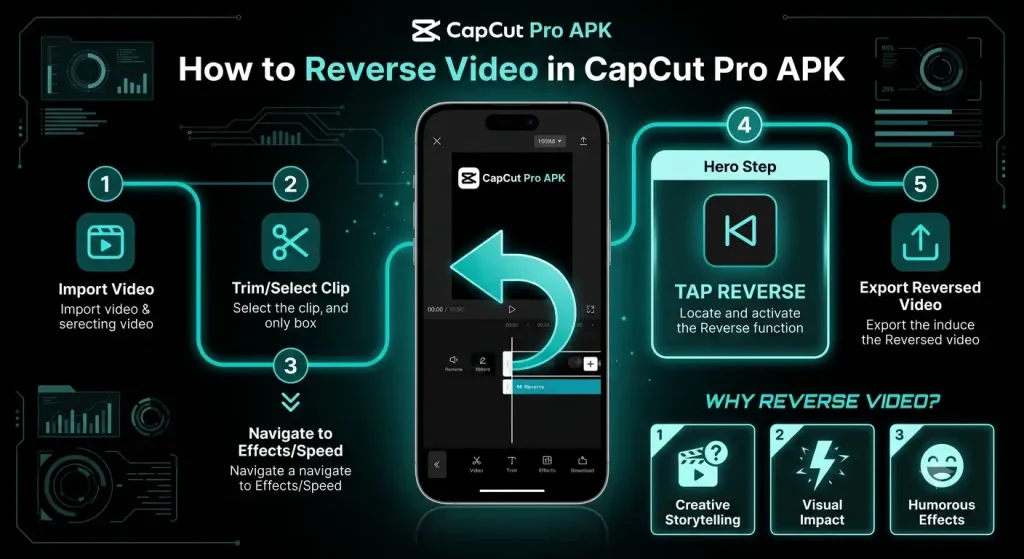
Why do we Need to Reverse the Video?
Reversing a video means to change the way it looks from the end to the beginning. A reversed video becomes a catchy part of the content. Let’s learn more about it below.
To Make it Interesting
The reversing process makes a video interesting as it grabs the viewers attention. When the viewer watches the reversal video, it sparks a moment of curiosity on what is coming next.
To Create Funny Video
You can give videos a funny or magical effect by reversing the video. For example if someone drops a glass of water, you can reverse the video to give the video a magical or funny touch. This will grab the viewers attention and make the content engaging.
To Display an Action in Revers
When you reverse the video, you actually show it from the end to the beginning. This aspect can give an ordinary video a completely different look. This reversal technique is particularly useful in demonstrating movement and for creating interesting visual effects.
you may Also see: Cancel CapCut Subscription
Final Verdict
This article above presents the step by step guide on how to reverse video in capcut. Reversing a video in Capcut is a unique and interesting technique. It can convert ordinary videos into catchy and unique shots which can instantly grab the viewers attention.
Whether you use it for transitions, entertainment, or storytelling, the reverse tool can make a big difference by changing its display. This article is an extremely easy step guide that covers the process of performing this action on your videos. So, read the steps, apply them, and enjoy your videos!
Frequently Asked Questions:
Will the original audio be reversed if we reverse the video?
Yes, it is also reversed. You can play and check it.
How can I add audio or music to my reversed video?
You can add audio by clicking on the “Audio” option that is present at the bottom of the screen.
Can I reverse only one section of the video?
Yes , you can reverse one section of the video by splitting it.
Does the reverse option work on older versions of CapCut?
The reverse tool may vary slightly depending on the app version. If the option is missing or the editing interface looks different, an older version of CapCut may have a different tool layout or feature availability.